I’ve built more training manuals than I’d like to admit in spreadsheets that broke the moment someone else touched them. That’s usually the real reason people start shopping for training manual software: not curiosity, but a folder of Word docs nobody trusts anymore.
I spent weeks testing ten tools that promise to fix this, from platforms built specifically for manuals to auto-capture tools that write the steps for you while you work. Some are built for HR teams to standardize onboarding. Others are built for manufacturers who can’t afford a single misread instruction on the floor. A few are just glorified wikis wearing a training hat.
Below is what actually held up: real Capterra ratings, real pricing, and the pros and cons I’d tell a colleague over coffee, not a sales call.
What Is Training Manual Software, Really?
That sounds like a small upgrade until your manual hits page 40, and Word corrupts the formatting every time someone edits a bullet on page 3. That’s usually the moment people start searching for software for training manuals instead of patching the spreadsheet again.
You’ll sometimes see this category lumped in with training documentation software or a plain knowledge base tool, and the line is blurrier than any vendor site admits. Some training manual software is really an LMS with a manual bolted on, built as much for quizzes and certificates as documentation.
Other tools skip learning management entirely and focus on the manual itself. Neither approach is wrong. It depends on whether you need proof that someone finished training, or just need them to stop asking the same question every Tuesday.
Top 10 Training Manual Software Compared
Here’s how all ten tools stack up before I get into the details on each. I’ve included whether each one has real AI features baked in, since that’s a genuine differentiator in this category now, not just a marketing checkbox.
| Tool | Best For | Capterra | AI Features | Starting Price |
|---|---|---|---|---|
| ProProfs Training Maker | End-to-end manuals + LMS tracking | 4.8/5 | Yes | Free (10 learners); from $1.99/learner/mo |
| ProProfs Knowledge Base | Manual + searchable help site | 4.7/5 | Yes | Free (1 author); from $49/author/mo |
| Scribe | Auto-captured software guides | 4.8/5 | Yes | Free; Pro from $13 to $25/seat/mo |
| Tango | Guide + in-app walkthrough | 4.8/5 | Yes | Free; Pro from ~$22/user/mo |
| Trainual | Dedicated SOP/manual library | 4.8/5 | Limited | Custom quote (~$249/mo floor) |
| iSpring Suite | PowerPoint-to-course conversion | 4.6/5 | Yes | ~$770 to $970/author/yr |
| Easygenerator | SME self-service authoring | 4.8/5 | Yes | Pro $116/mo; Team $582/mo |
| Confluence | Wiki-style manuals in Atlassian | 4.5/5 | Yes | Free (10 users); Standard $5.42/user/mo |
| Dozuki | Manufacturing/frontline instructions | 4.4/5 | Yes | Custom quote (~$850/mo, 50-user min) |
| ScreenSteps | Support/ops knowledge base | 4.8/5 | No | Standard $239/mo |
1. ProProfs Training Maker – Best for Easy Course Creation for Employee Training, Compliance & Skill Assessment
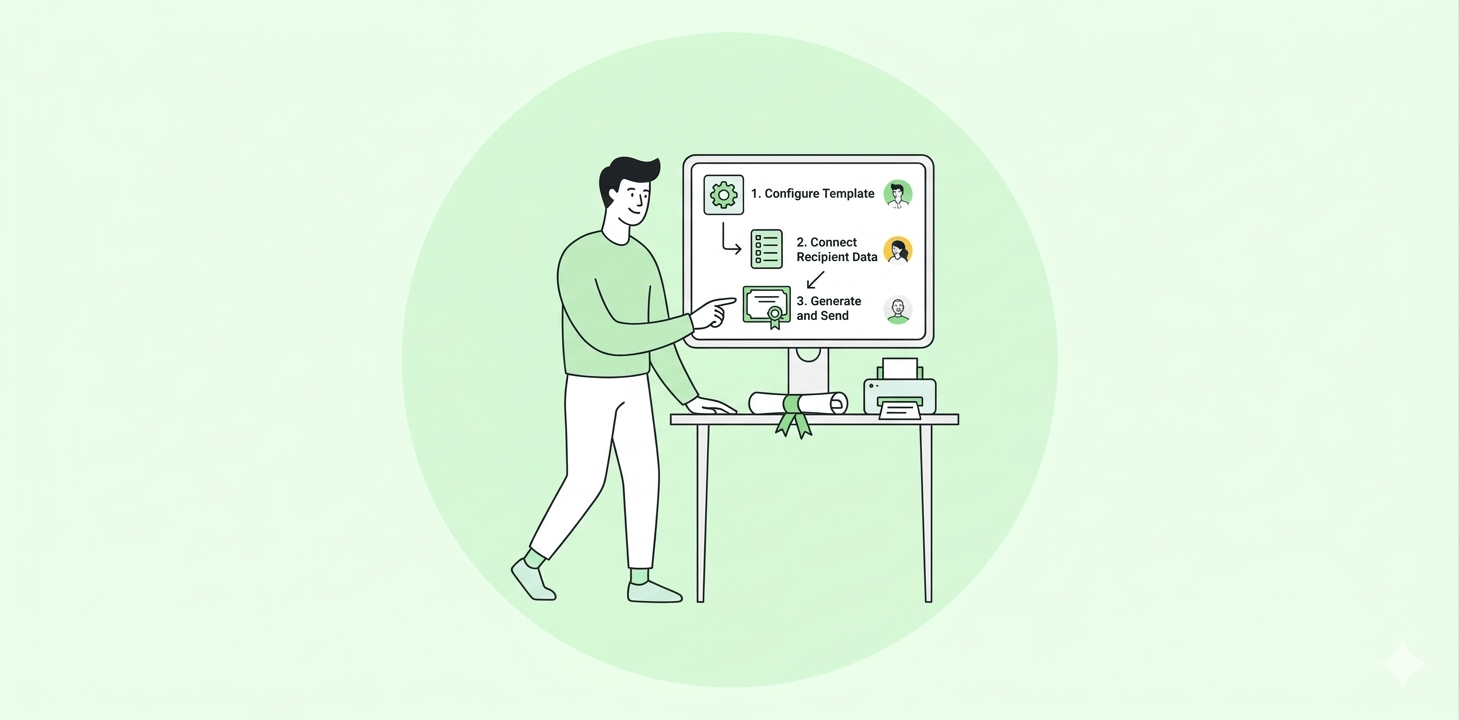
ProProfs Training Maker lets you build a manual from scratch, import an existing PDF or PowerPoint deck, or use its AI course builder to draft a full structure from a topic you type in.

Let ProProfs AI create your training course
What sets it apart is the policy and procedure training layer underneath the manual itself: you’re not just publishing a document, you’re publishing something with quizzes attached, a completion audit trail, and role-based assignment, so you can prove Dana in accounting actually read the new expense policy instead of just clicking through it.
500+ expert-built, ready-to-use courses cover compliance, safety, and onboarding out of the box, and everything renders cleanly on mobile without a separate app.
For teams that need the manual to double as compliance proof, not just a document sitting in a shared drive, this is the strongest training manual software on this list for that specific job, and one of the few that treats writing the manual and proving it was read as a single workflow.
Pros
- Combines manual creation with quizzes, certificates, and a full completion audit trail
- AI course builder turns a topic into a working draft in minutes
- 500+ compliance and skills courses covering OSHA, HR, and onboarding topics
- Mobile-friendly delivery with no app download required
- Supports SCORM and Tin Can import, so existing e-learning content isn’t wasted
Cons
- A dark viewing option for low-light use is currently unavailable.
- The platform is cloud-based, with no self-hosted or on-premise deployment option.
Pricing: Free (up to 10 learners) / Essentials from $1.99 per learner, per month, billed annually.
2. ProProfs Knowledge Base – Best for Easiest Customer Support Help Center & Internal Employee Knowledge Base in One
Once your manual outgrows a single document, this is the pairing I’d recommend: ProProfs Knowledge Base, paired with Training Maker, turns your policies, SOPs, and how-to content into a searchable site employees can check before they ping you on Slack.
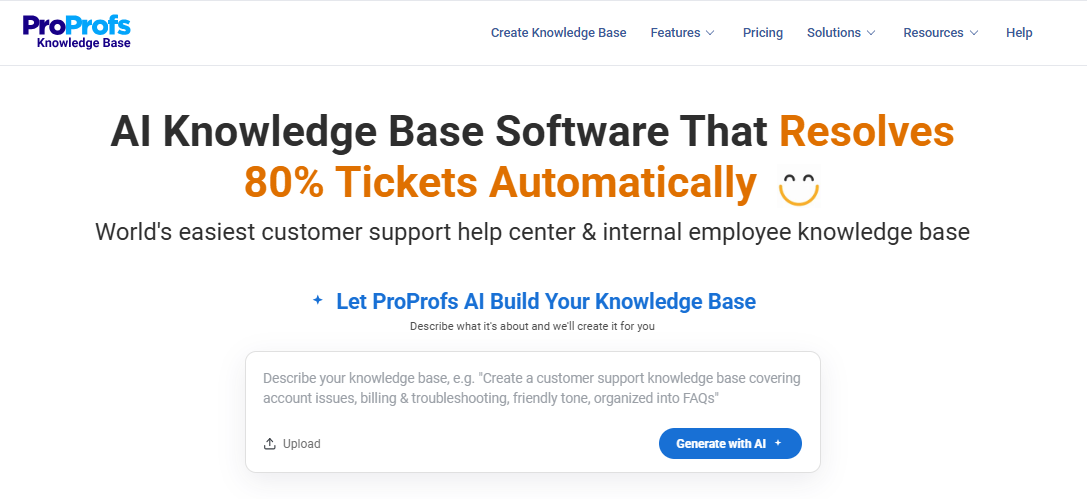
It’s built specifically as user manual software, not a generic wiki bolted onto a help desk, so the search engine actually understands full questions instead of just matching stray keywords.
Version control means last quarter’s return policy doesn’t quietly resurface after you’ve updated it, and scheduled article expiration keeps outdated pages from lingering.
The free plan is genuinely usable for a single author and 25 pages, which covers plenty of small teams longer than you’d expect. I wouldn’t buy this instead of a dedicated training manual tool. I’d buy it alongside one, specifically for the follow-up questions people ask after they’ve already read the manual once.
Pros
- Purpose-built for manuals, FAQs, and documentation, not general note-taking
- Google-like search that understands full questions, not just keyword matches
- Version control and scheduled article expiration keep outdated content from lingering
- Pairs natively with Training Maker for a manual-plus-help-site setup
- Supports 90+ languages, useful for distributed or global teams
Cons
- Low-light viewing could be improved with a dedicated dark theme.
- It does not offer a locally installed or self-hosted deployment option.
Pricing: Free (1 author, 25 pages) / Essentials from $49 per author, per month, billed annually.
3. Scribe – Best for Auto-Capturing Software Steps Into a Manual in Minutes
Scribe is the tool I hand to anyone who hates writing manuals more than they hate the problem the manual is supposed to solve.
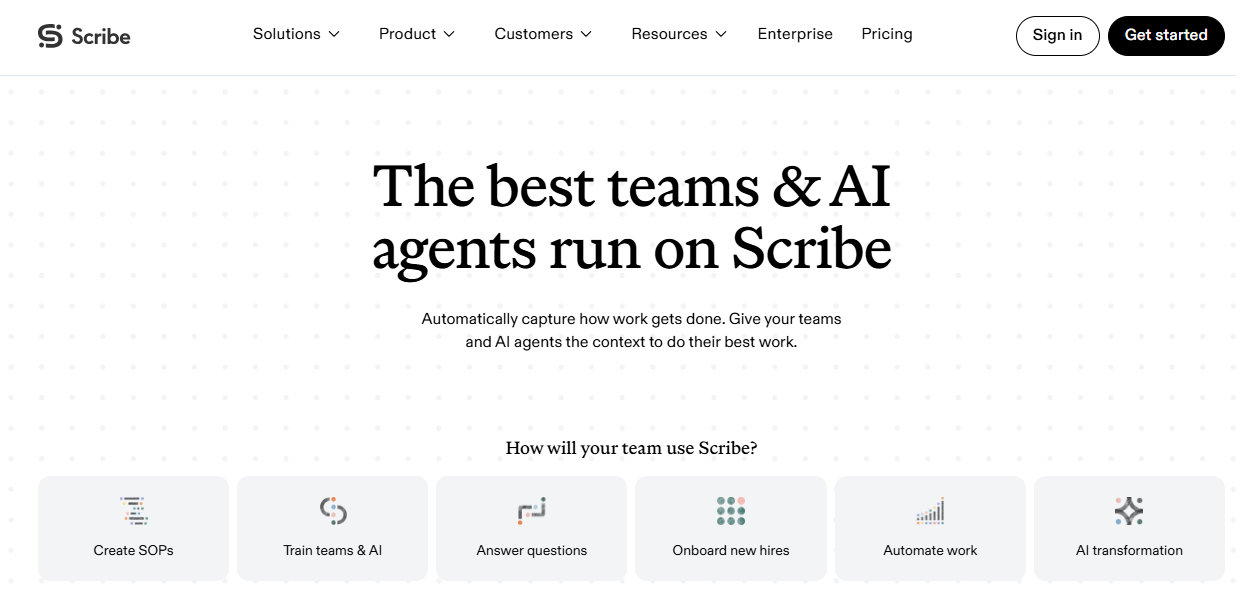
Turn it on, click through whatever process you’re documenting, and it builds a step-by-step guide with screenshots and captions automatically, no typing required until you go back to edit.
For a quick internal how-to on submitting an expense report or resetting a shared password, it’s genuinely faster than anything else on this list, and the guides export cleanly as PDF, Markdown, or a shareable link. The catch is that Scribe documents a single workflow well; it isn’t trying to be a structured manual with chapters, quizzes, or a table of contents.
The AI-written captions occasionally need a human pass too, since they can read a little generic without added context. If your manual is really a collection of individual how-tos rather than one cohesive document, start here before you consider anything more complex or expensive.
Pros
- Fastest capture-to-guide workflow on this list, often just minutes
- Free plan is genuinely usable, not just a teaser
- Works across nearly any web or desktop app
- Exports guides as PDF, Markdown, or a shareable link
- Desktop and browser capture cover most day-to-day software workflows
Cons
- No structure for multi-chapter manuals or course-style content
- AI-generated captions sometimes need a manual edit pass
Pricing: Free (Basic) / Pro Personal from $25 per seat, per month / Pro Team from $13 to $17 per seat, per month (5-seat minimum) / Enterprise custom.
4. Tango – Best for Turning One Walkthrough Into a Guide and an In-App Overlay
Tango does roughly what Scribe does (capture your clicks, generate a guide) but pushes further into letting that same capture become an interactive, in-app walkthrough your team follows live inside the actual software, not just a document they read beforehand.
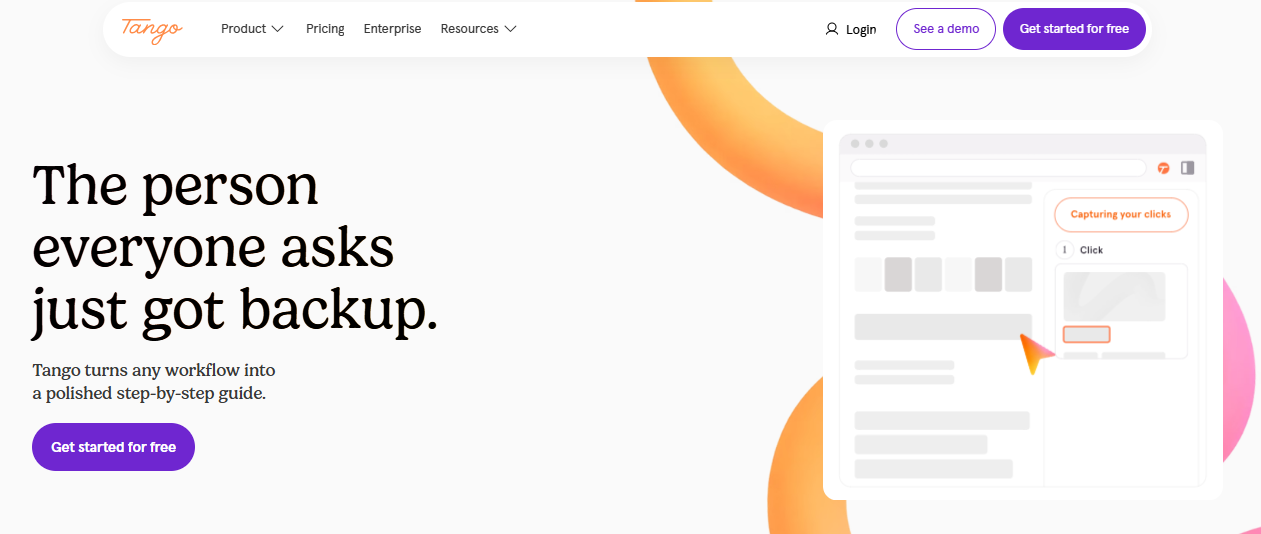
That’s genuinely useful for tools your team uses constantly but rarely all at once, like a CRM or an internal admin panel, and its AI Copilot helps clean up and structure the captured steps automatically.
The free plan caps you at 15 shared workflows total across your whole workspace, which fills up faster than it sounds once more than one person starts documenting.
Editing captured screenshots is still a little clunky, and you should expect some manual cleanup after auto-capture, especially on steps involving typed text, which Tango doesn’t record automatically. I’d pick this over Scribe specifically when the goal is guiding someone through live software, not just handing them something to read first.
Pros
- Captured guides can become live, in-app walkthroughs, not just static docs
- Free plan supports up to 10 users
- Genuinely fast setup with no technical configuration
- Guides embed directly into existing docs, LMS platforms, or team chat tools
- AI Copilot helps clean up and structure captured steps automatically
Cons
- 15-workflow cap on the free plan fills up quickly with more than one contributor
- Doesn’t auto-capture typed text, so some manual editing is unavoidable
Pricing: Free / Pro from roughly $22 to $26 per user, per month, billed annually / Enterprise custom.
5. Trainual – Best for a Dedicated SOP and Manual Library Built Around Onboarding
Trainual is what a lot of small operations teams land on once they’ve outgrown a shared folder labeled ‘SOPs (final) (final v2).’ It’s purpose-built for exactly this job: role-based training paths, a searchable library, and an org chart that ties every procedure back to the person who actually owns it.
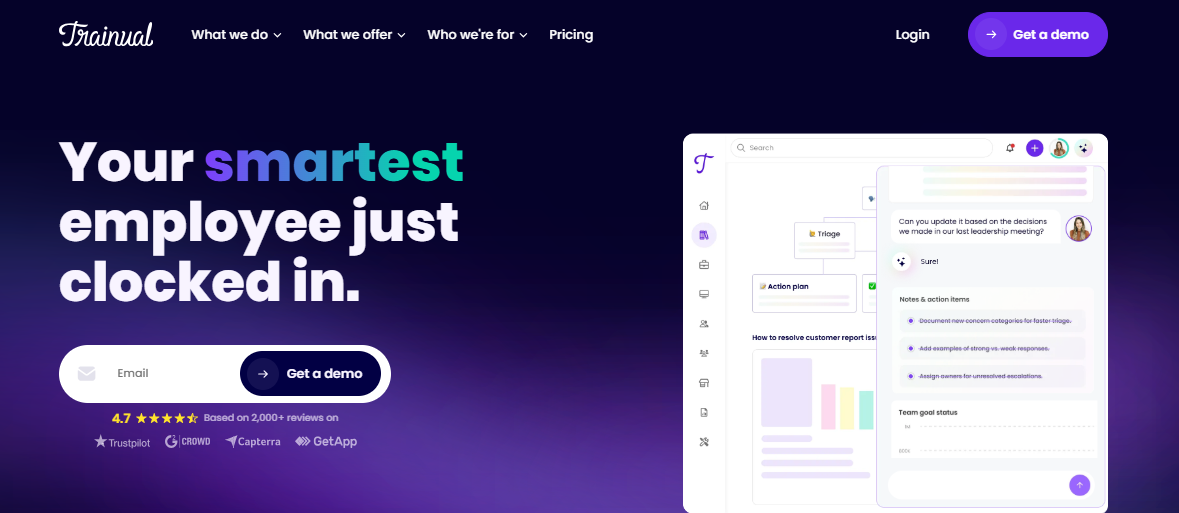
The interface is genuinely pleasant, which matters more than it sounds like it should when you’re asking non-technical staff to use something daily, and the onboarding-specific templates get new hires productive faster than starting from a blank page.
My honest hesitation is the pricing. Trainual has moved to fully custom, quote-only pricing, so you can’t get a real number without a sales call, and the effective floor lands well above what a lean five-person team wants to pay for onboarding software. If budget flexibility is there, this is one of the most polished dedicated tools in the category.
Pros
- Purpose-built role-based training paths and org chart integration
- Consistently high user satisfaction ratings across review platforms
- Clean, non-intimidating interface for non-technical staff
- Org chart ties every procedure directly to the person who owns it
- Strong onboarding-specific templates get new hires productive faster
Cons
- Fully custom, quote-only pricing with no public rate card
- Effective cost floor is high for very small teams
Pricing: Custom quote only. Third-party estimates put the effective floor around $249 per month for 10 seats.
6. iSpring Suite – Best for Converting Existing PowerPoint Decks Into Interactive Manuals
If your team already lives in PowerPoint, and let’s be honest, a lot of training content still starts there whether we like it or not, iSpring Suite is the least painful bridge from slide deck to interactive course.
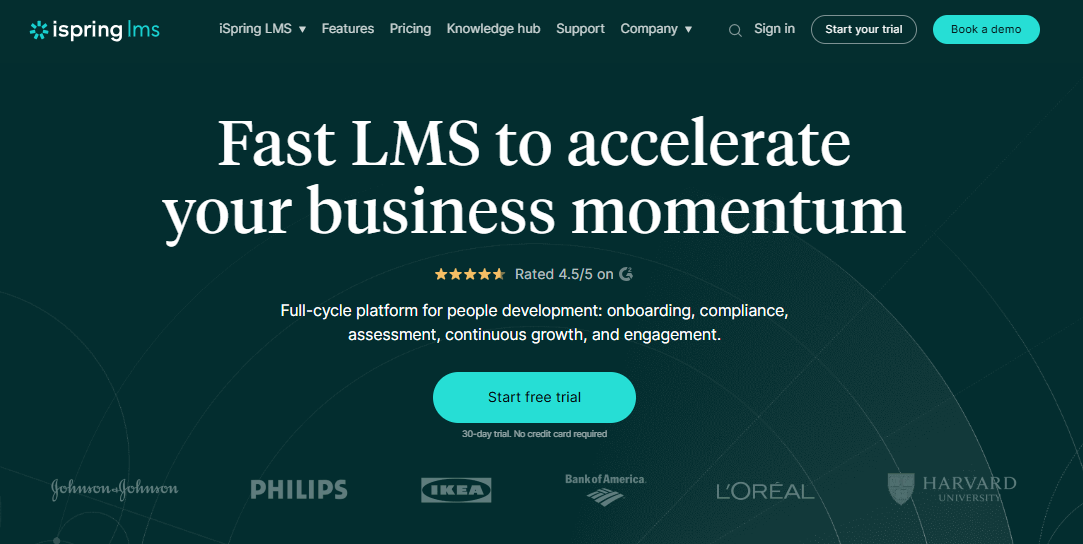
It installs as a PowerPoint add-in, so the learning curve is close to zero for anyone who’s built a deck before, and it adds quizzes, branching scenarios, and screen recording on top of what you already built, then exports cleanly to SCORM or Tin Can for almost any LMS.
Reviewers consistently flag the licensing as rigid, since it’s tied to a device or user in a way that gets annoying the moment someone changes laptops. It’s also priced per author per year, which adds up fast if several people need to build content at once.
For a solo instructional designer converting a backlog of old decks, it’s genuinely hard to beat.
Pros
- Near-zero learning curve for anyone comfortable in PowerPoint
- Strong quiz and branching-scenario capabilities for interactive manuals
- Large, well-reviewed user base with consistent ratings across platforms
- Exports cleanly to SCORM and Tin Can for most LMS platforms
- Built-in screen recording captures live software demos directly into a course
Cons
- Licensing is tied to a device or user and can be rigid to transfer
- Priced per author, per year, which adds up for multi-author teams
Pricing: From roughly $770 to $970 per author, per year, depending on tier.
7. Easygenerator – Best for Letting Subject Matter Experts Write Manuals Themselves
Easygenerator’s whole pitch is that the person who actually knows the process, not a dedicated instructional designer, should be the one writing the manual, and the interface backs that up.
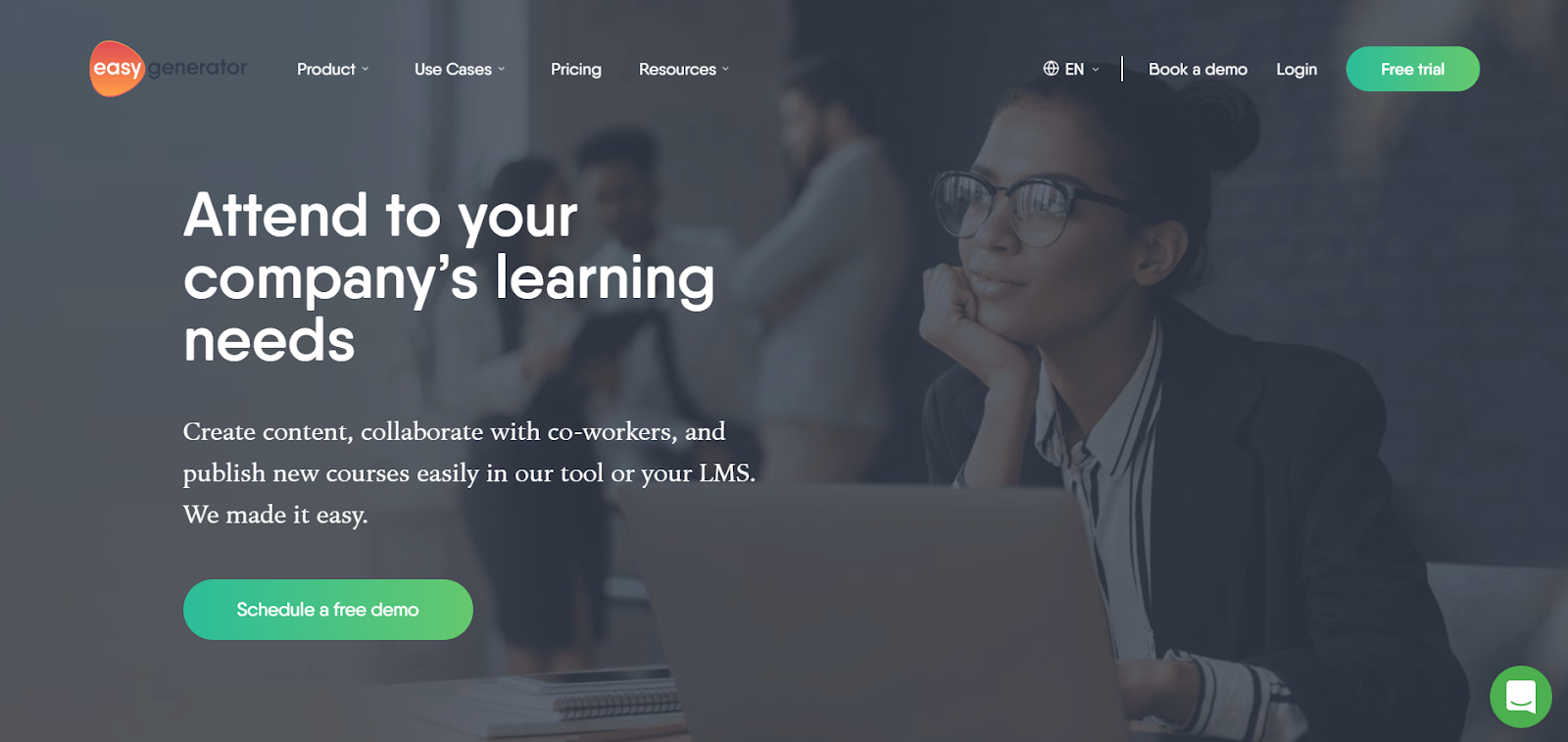
It’s genuinely simple: text, images, video, a quiz block, done, and because it’s fully cloud-based, multiple contributors can co-author the same manual without version conflicts.
I’ve watched someone with zero e-learning background publish a passable onboarding module in under an hour, which isn’t something I’d say about most tools on this list. It’s a genuinely good fit for lean teams that need several subject matter experts contributing without a dedicated LMS administrator managing the process.
Where it falls short is customization: if you want granular control over layout, branching logic, or advanced interactivity, you’ll hit the ceiling fast. It’s also priced in a way that rewards committing to the Team plan early, since the jump from a single Pro seat to multi-author access is steep.
Pros
- Built specifically for subject matter experts with no instructional design background
- Fast to publish a simple, clean course or manual
- AI assistant helps draft content from a starting outline
- Fully cloud-based, so multiple contributors can co-author without version conflicts
- Clean, modern learner-facing interface with minimal setup required
Cons
- Limited layout and interactivity customization compared to authoring-heavy tools
- Pricing jump from single-seat Pro to multi-author Team is steep
Pricing: Pro from $116 per month, billed annually / Team from $582 per month for 5 authors, billed annually.
8. Confluence – Best for Manuals As Wiki Pages Inside an Existing Atlassian Stack
I’ll say the unpopular thing: Confluence isn’t really training manual software; it’s a wiki that a lot of engineering-heavy companies already pay for, so people default to writing manuals in it because the login is already open.
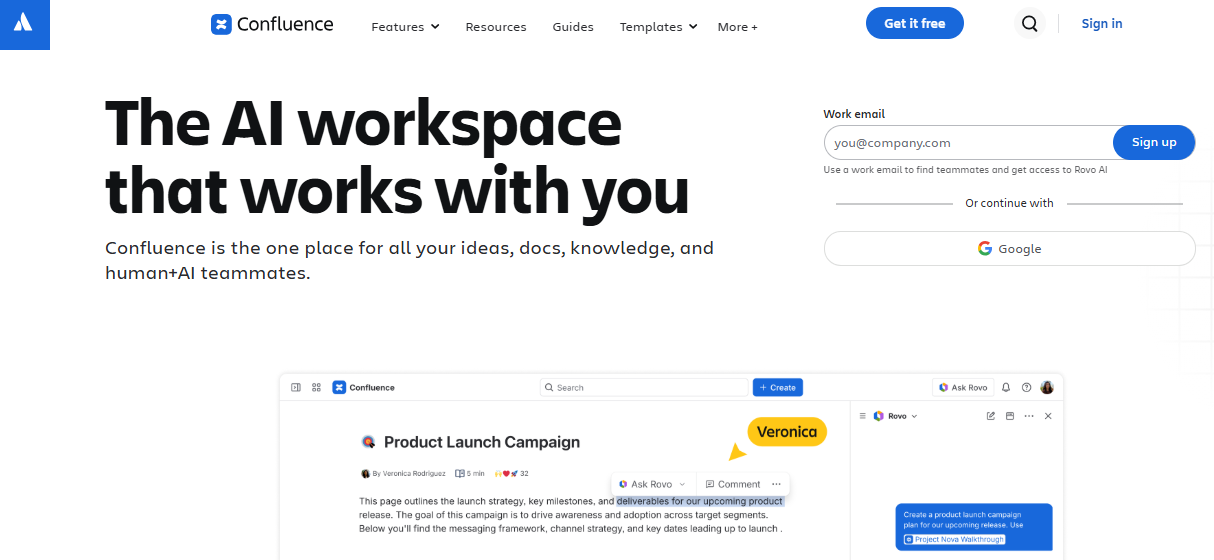
If your company runs on Jira and half your team already lives in the Atlassian ecosystem, that inertia is a legitimate reason to use it, and the deep integration between the two products is genuinely convenient. The real-time collaborative editing is strong, permissions are granular enough for sensitive internal procedures, and Atlassian’s Rovo AI is now bundled into paid plans for search and drafting help.
But search gets messy at scale, formatting large pages with a lot of embedded media can get sluggish, and there’s no learner tracking at all, so you have no idea who’s actually read the onboarding SOP versus who just left the tab open.
Pros
- Real-time collaborative editing that most dedicated manual tools don’t match
- Granular, page-level permissions for sensitive internal content
- Already paid for and adopted at companies running the Atlassian suite
- Deep integration with Jira and the rest of the Atlassian ecosystem
- Rovo AI now bundled into paid plans for search and drafting help
Cons
- No built-in learner tracking, quizzes, or completion reporting
- Search and performance degrade on large, media-heavy spaces
Pricing: Free (up to 10 users) / Standard from $5.42 per user, per month / Premium from $10.44 per user, per month.
9. Dozuki – Best for Manufacturing and Frontline Work Instructions With Offline Access
Dozuki exists for a problem most office-based training tools completely ignore: what happens on a factory floor where nobody’s staring at a browser tab, and a misread step can mean a safety incident, not just a support ticket.
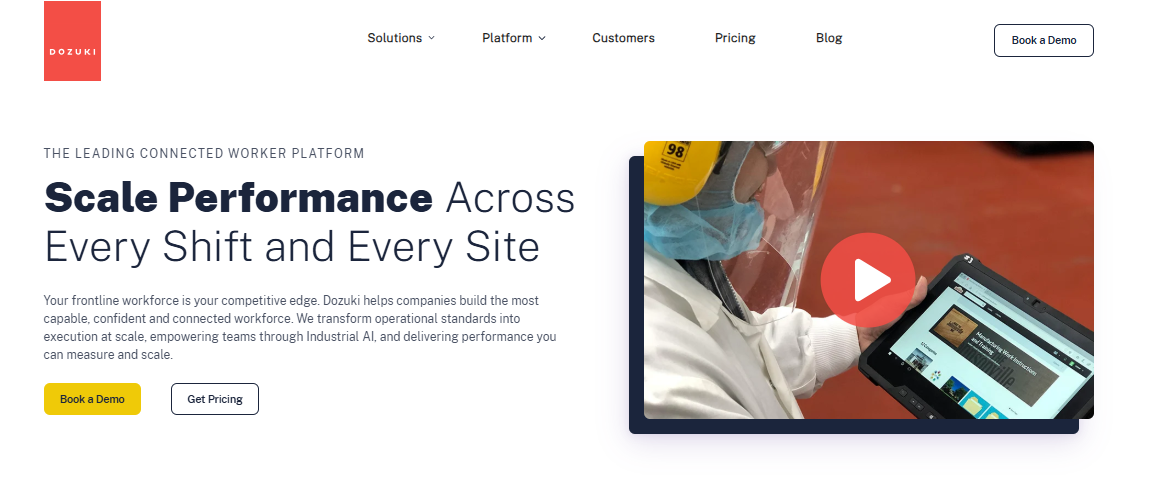
It’s built around standardized work instructions with version control that locks out outdated procedures the moment a new one is approved, mobile and offline access for people who aren’t sitting at a desk, and compliance support for FDA and ITAR requirements that most of this list doesn’t even attempt.
Translation tools cover 80-plus languages, which matters for manufacturers running multiple sites globally, and documented procedures tie directly into a trackable training and competency program. That specificity comes at a cost, literally: there’s a real seat minimum and no free trial, so you’re committing before you’ve fully kicked the tires.
If a bad instruction on your floor has real consequences, this is worth the sales call.
Pros
- Purpose-built for manufacturing SOPs with instant version distribution
- Mobile and offline access for frontline, non-desk workers
- Supports FDA CFR Part 11 and ITAR compliance requirements
- Translation tools cover 80+ languages for global manufacturing teams
- Ties documented procedures directly into a trackable training and competency program
Cons
- Real seat minimums and no free trial to test before committing
- Quote-only pricing with a meaningfully higher cost floor than office-focused tools
Pricing: Custom quote. Third-party estimates put it around $850 per month with a 50-user minimum.
10. ScreenSteps – Best for a Searchable Internal Knowledge Base for Support and Ops Teams
ScreenSteps sits in a similar lane to Confluence and ProProfs Knowledge Base, a searchable internal hub, but it’s built with a sharper focus on support and operations teams who need an agent to find the right procedure mid-call, not five minutes later.
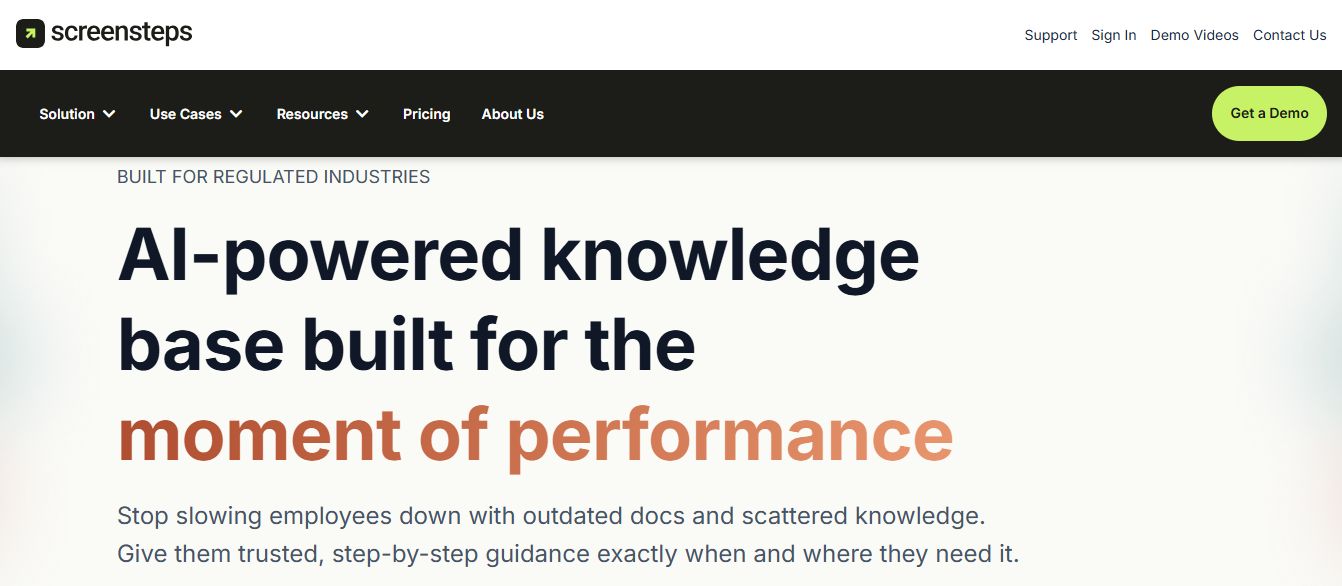
The publishing workflow (draft, review, approve) is more structured than most competitors here, which matters if wrong information going live is a real liability for your team, and the same content can be published as a web help center or exported straight to PDF.
Search and view analytics show you exactly which articles are failing and need a rewrite, which is more visibility than most tools on this list offer.
It’s noticeably pricier than most tools here at the entry tier, and that’s the main reason I wouldn’t recommend it to a small team just getting started. Where it earns its price is search quality and the review workflow itself.
Pros
- Structured draft-review-approve publishing workflow reduces the risk of bad info going live
- Search quality consistently rated above similarly priced competitors
- Built specifically for support and operations knowledge, not general note-taking
- Same content can publish as a web help center or export to PDF
- Search and view analytics show exactly which articles need a rewrite
Cons
- Noticeably pricier at the entry tier than most tools on this list
- Smaller review base than more established competitors, so less peer validation
Pricing: Standard from $239 per month ($2,500 billed annually) / Advanced from $479 per month ($4,500 billed annually).
My Top 3 Training Manual Software
If you want to skip the full comparison, here are the three training manual software tools I’d shortlist first, each suited to different use cases.
1. ProProfs Training Maker- Best Overall
If I had to standardize on one training manual software tool for a whole company tomorrow, this is it. It’s the only tool on this list that treats the manual and the proof someone read it as the same problem, using built-in authoring plus AI course creation to get a first draft out fast. From there, quizzes and completion tracking close the loop without needing a second tool bolted on. Nothing else here handles both ends this well at this price.
2. ProProfs Knowledge Base – Best for Searchable Manuals and SOPs
If the goal is to make policies, SOPs, and how-to documentation easy to find after they are published, ProProfs Knowledge Base is my second pick. It turns manual content into a searchable internal knowledge hub, with version control and scheduled article expiration helping teams keep information current. I especially like it alongside Training Maker: one handles structured training and completion tracking, while the other gives employees somewhere to quickly find answers when they need them later.
3. Dozuki- Best for Frontline and Manufacturing Teams
If a misread instruction on your floor is a safety incident and not just an inconvenience, general-purpose tools aren’t built for your actual risk. Dozuki is the only platform here that takes offline access, version locking, and regulatory compliance as seriously as the job requires. It costs more and requires a real commitment upfront, with no free trial to soften the blow. For a regulated shop floor, that trade-off is usually worth it.
How I Evaluated These Training Manual Software Tools
I didn’t just skim landing pages and rank them by whichever one had the loudest marketing. Here’s what actually went into evaluating training manual software for this list:
- User Reviews and Ratings: I pulled current ratings from Capterra for every tool, not just whichever number looked best, and cross-checked against G2 where a rating looked like an outlier before trusting it.
- Core Manual-Building Features: I looked past the feature list and tested whether a tool could actually handle a real manual: multi-step structure, version control, media support, and searchability, not just a single how-to document.
- AI Features, Honestly Assessed: Nearly every tool here now claims some form of AI assistance. I checked whether that AI actually saves meaningful time, like drafting a course outline or auto-capturing steps, or whether it’s a caption generator bolted on to justify a pricing tier.
- Ease of Use for Non-Technical Staff: A manual tool only the L&D team can operate has already failed at its job. I weighted heavily toward tools a subject matter expert with no authoring background could actually use.
- Pricing Transparency and Real Cost at Scale: Free trials and teaser pricing are easy. I looked at what a plan actually costs once you add a fifth author or hit your free-tier limit, and flagged every tool that hides its real pricing behind a quote-only sales call.
- Support and Documentation for Setup: Rollout matters as much as the tool itself. I factored in how much hand-holding each platform offers during initial setup, based on both vendor documentation and what reviewers said about actually getting stuck.
That’s not a perfect science. Two of these tools could switch places on a different day depending on what I weighted more heavily. But it’s a real evaluation, not a sponsored list dressed up as one.
The Real Question Isn’t Which Tool. It’s What Happens If Nobody Reads It.
Every tool on this list will let you write a manual. That was never the hard part. The hard part is what happens after you hit publish: whether anyone opens it, whether they understand it, and whether you can prove they did if a regulator, an auditor, or an angry customer ever asks.
That’s the lens I’d actually use to choose. If you need proof someone completed training, not just access to a document, you need something with tracking and assessments built in, which rules out plain wikis and auto-capture tools as your only system. If your biggest problem is that writing anything takes too long, an auto-capture tool like Scribe or Tango will save you more real hours than any amount of feature comparison. And if a bad instruction on your floor is a safety incident, the cheapest tool on this list isn’t a bargain. It’s a liability with a lower price tag.
I’d start with ProProfs Training Maker if you’re not sure yet, mostly because it doesn’t force that choice this early. You can write the manual, add the quiz, and see who finished it, all in one place, and figure out later whether you need something more specialized.
Frequently Asked Questions
What is the best training manual software for small teams?
For most small teams, ProProfs Training Maker is the easiest starting point since it's free for up to 10 learners and combines manual creation with basic tracking. If you only need fast, auto-captured how-to guides rather than a structured course, Scribe's free plan is worth trying first.
What's the best software for creating training manuals if I have zero budget?
Scribe, Tango, and ProProfs Training Maker all offer genuinely usable free plans, not just trials. Scribe and Tango are better for quick, single-process guides, while ProProfs Training Maker's free tier fits teams that also want quizzes and completion tracking built in from day one.
Is training manual software the same as an LMS?
Not exactly. An LMS focuses on delivering and tracking courses, often with certifications. Training manual software overlaps but is more focused on documenting a specific process or policy. Some tools, like ProProfs Training Maker, function as both; others, like Confluence, are documentation-only with no learning tracking.
How do I convert an existing Word or PDF manual into software?
Most tools on this list let you upload an existing PDF, Word doc, or PowerPoint deck and convert it into a structured page or course. ProProfs Training Maker and iSpring Suite both handle this well; iSpring is strongest specifically for existing PowerPoint content.
What should I look for in a software training manual for a technical product?
Look for support for screenshots, annotations, and version control, since technical manuals change often. Scribe and Tango handle auto-captured screenshots well for step-by-step software instructions, while ProProfs Knowledge Base is stronger for a searchable, long-term reference site.
Do I need AI features in training manual software?
Not strictly, but they save real time. AI course builders can turn a topic or outline into a working first draft in minutes, and auto-capture tools use AI to write step descriptions automatically. Treat AI as a time-saver, not a replacement for a final human review pass.
Can frontline or manufacturing teams use regular training manual software?
Technically yes, but general office tools rarely handle offline access, mobile viewing, or regulatory compliance well. If your team works without reliable internet or the instructions carry real safety weight, purpose-built tools like Dozuki are worth the higher cost over a general documentation platform.
How much does training manual software typically cost?
It ranges widely. Free plans exist at the low end (Scribe, Tango, ProProfs Training Maker), while quote-only enterprise tools like Trainual and Dozuki can run several hundred dollars a month before you've added many users. Most small teams land between $50 and $250 monthly.
Let ProProfs AI create your training course

 We'd love your feedback!
What did you like & how can we make it even better?
 Thanks for your feedback!
 Ask Your Question
Have a question? Get expert help to make your decision easier.